Contents
- Overview
- Most Common Issue: Incorrect Billing Account Profile Selected
- Log Into the Correct Microsoft 365 Admin Center Account
- Global Administrator Privileges Required
- Sign the Current MCA
- Confirm Billing Information is Completely Filled Out
- Request Fulfilled Over 36 hours Ago
-
Microsoft Support Asked You to Contact Your Reseller
Overview
It is not uncommon for organizations to run into issues locating their on-premises (desktop) products within the Microsoft 365 Admin Center. You will need to have certain things in place to be able to view and access your Microsoft for Nonprofit products acquired through TechSoup.
NOTE: Licenses will still be visible in the Microsoft 365 Admin Center after the five day download window that affects some Microsoft products. Licenses without product keys or download files will also be visible.
After you have confirmed you meet the requirements, learn how to locate your licenses within the Microsoft 365 Admin Center.
Most Common Issue: Incorrect Billing Account Profile Selected
It is not uncommon for organizations to have multiple billing account profiles affiliated with their Microsoft 365 Admin Center. Most of the time an Microsoft Online Subscription Agreement (MOSA) billing account profile is set as the default billing account profile. A MOSA billing account profile will never be associated with on-premises (desktop) licenses requested through TechSoup.
Instead, organizations will need to select the Microsoft Customer Agreement (MCA) billing account profile associated with on-premises (desktop) licenses requested through TechSoup.
Learn how to:
MCA Billing Account Support
Open a support ticket in your Microsoft 365 Admin Center to request support locating or accessing the correct MCA billing account profile.
Include in the domain and tenant ID details within the Microsoft Support Ticket. Learn how to find your tenant domain in Microsoft 365 Admin Center.
Log Into the Correct Microsoft 365 Admin Center Account
You will need to log into the Microsoft 365 Admin Center account for the tenant domain associated with the TechSoup request. It is not uncommon for organizations to have multiple tenant domains, each with their own Microsoft 365 Admin Center account.
Learn how to find your tenant domain in Microsoft 365 Admin Center.
Microsoft 365 Admin Center Account Support
Open a support ticket in your Microsoft 365 Admin Center to request accessing the correct account.
Include in the domain and tenant ID details within the Microsoft Support Ticket. Learn how to find your tenant domain in Microsoft 365 Admin Center.
Global Administrator Privileges Required
You must have access to a Microsoft 365 Admin Center 9 account with Global Administrator privileges to locate your organization’s products and complete other required actions. The user who registered your organization’s Microsoft for Nonprofits account 1 is automatically assigned the Global Administrator privileges.
Review Microsoft’s information about admin roles in the Microsoft 365 Admin Center and assigning admin roles in the Microsoft 365 Admin Center.
Confirm Global Administrator Privileges
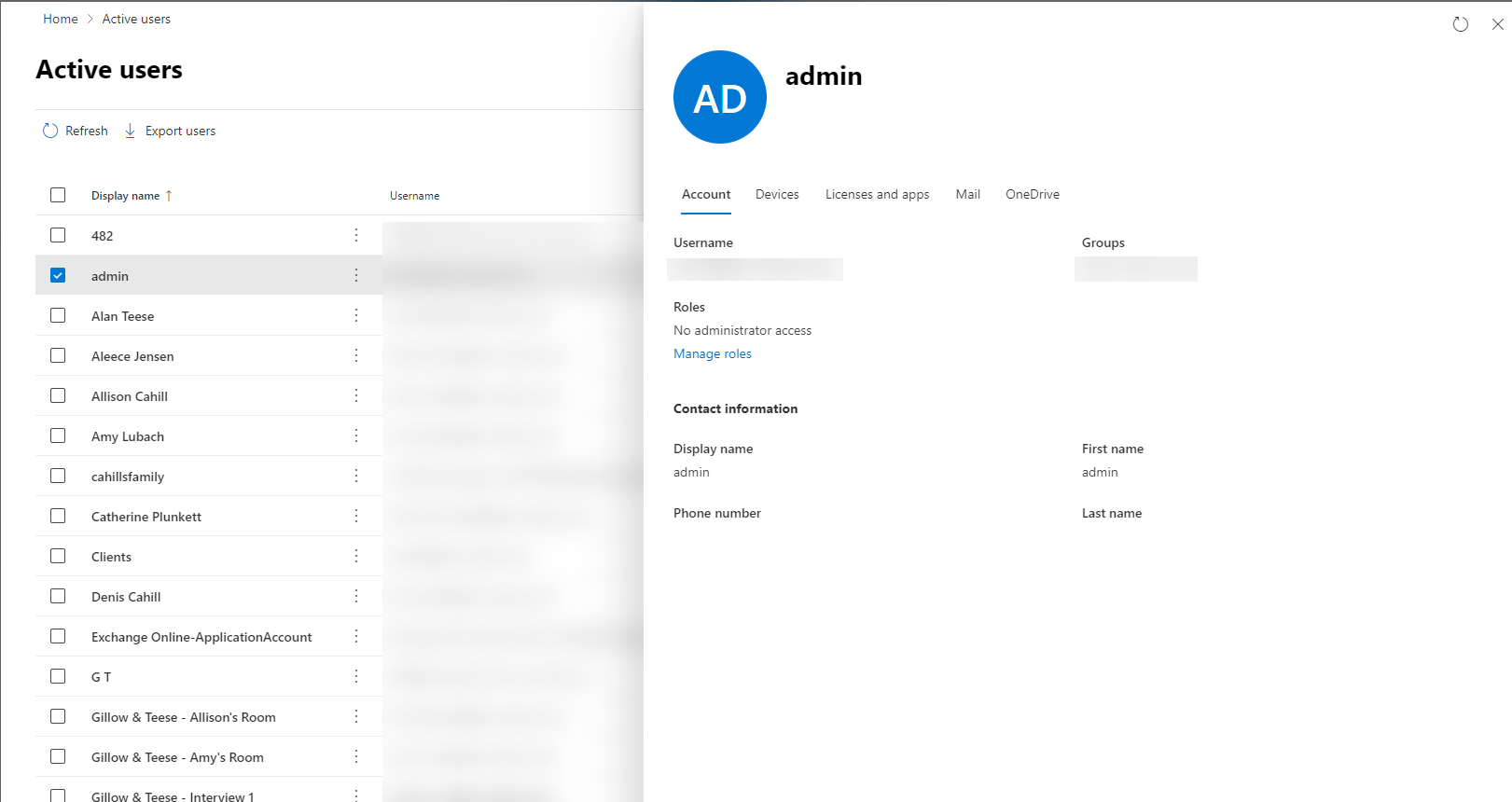
- In your Microsoft 365 Admin Center account, go to: https://portal.office.com/Adminportal/Home#/users
- If you are unable to access the URL, https://portal.office.com/Adminportal, then you are not an admin and do not have Global Administrator privileges.
- Select your user
- Under Roles, confirm that "Global administrator" is one of your assigned roles.
- If you see "No administrator access" you do not have Global Administrator privileges.
Global Administrator Support
Contact Microsoft Support to initiate an “Administrator Takeover” process. You will be required to confirm identity and ownership to regain access. Include in the domain and tenant ID details within the Microsoft Support Ticket. Learn how to find your tenant domain in Microsoft 365 Admin Center.
TechSoup is unable to confirm which user is the Global Administrator or assign the privileges to users within our Microsoft Partner Center. If the Microsoft Support representative tells you to contact your reseller or TechSoup, please explain that you have confirmed with your reseller Microsoft needs to provide admin privileges support.
Sign the Current MCA
Microsoft requires organizations to sign a Microsoft Customer Agreement (MCA) whenever a new version is released before they can access their products in the Microsoft 365 Admin Center. The most recent version was released in October 2025.
NOTE: Only a Global Administrator will have the privileges to access and sign the MCA.
Sign the current MCA here: https://admin.microsoft.com/AdminPortal/Home?#/partners/agreement
MCA Support
Unable to access the MCA in the Microsoft 365 Admin Center? TechSoup Customer Service can manually update the signature on your behalf.
- Review the MCA here Licensing Documents
- Contact TechSoup Customer Service.
- Inform the TechSoup representative inform you require support signing the MCA and you have already reviewed the MCA, then provide the following information:
- Contact's First & Last Name:
- NOTE: A contact name is required, and it cannot be generic, such as "Executive Director" or the "organization's name".
- Contact Email Address
- Contact Phone Number
- Contact's First & Last Name:
Confirm Billing Information is Completely Filled Out
Organizations must have all of their billing information filled out in their Microsoft 365 Admin Center to view and access their products. Microsoft has experienced issues in the past where billing information has been accidentally removed, so it is important to confirm your information is still listed.
Learn how to manage billing account profiles
You can also use following instructions for the Microsoft Customer Agreement (MCA) billing account type:
- In the Microsoft 365 Admin Center, go to the Billing > Billing accounts page.
- On the Overview tab, select a billing account.
- On the billing account details page, select the Billing profiles tab. The tab lists all billing profiles associated with the selected billing account.
- Select a billing profile name to view its details page.
- On the billing profile details page, under Bill-to address, select Edit.
- In the Edit bill-to address pane, update your organization information, then select Save.
Billing Information Support
Open a support ticket in your Microsoft 365 Admin Center for account and billing support.
Include in the domain and tenant ID details within the Microsoft Support Ticket. Learn how to find your tenant domain in Microsoft 365 Admin Center.
Request Fulfilled Over 36 hours Ago
Within 36 hours of TechSoup fulfilling your Microsoft for Nonprofits request, Microsoft creates and populates on-premises licenses in the Microsoft 365 Admin Center account that is tied to the tenant domain associated with your TechSoup account at the time your checked out with the licenses.
- Login to your TechSoup account.
- Navigate to your organization's Request History in your TechSoup account.
- Update the date range to expand the Request History list or enter the request number to locate the request.
- Once you locate the request in the Request History list, click on the Request Number to load the Donation Request Details page. This page is your invoice and will reflect when the request was processed and fulfilled by TechSoup or if it is still open.
- Note, you would have received a Fulfillment Email the same date your request was fulfilled.
Contact TechSoup Customer Service if your request is still pending and you believe it should have been fulfilled.
Microsoft Support Asked You to Contact Your Reseller
After confirming you meet all of the requirements detailed in this article and Microsoft Support asked you to contact your reseller or TechSoup for support, contact TechSoup Customer Service.
For TechSoup Customer Service to investigate and potentially escalate your issue, we will require the following information:
- All Microsoft Support Ticket Numbers related to this issue.
- Domain and Tenant ID listed in your Microsoft 365 Admin Center and a screenshot of the page.
- The email address used to log into Microsoft 365 Admin Center.
- Screenshots or a screen recording of the steps you are taking in your Microsoft 365 Admin Center to locate your products.
- Screenshots or a screen recording of the billing account selected in your Microsoft 365 Admin Center.
Comments
0 comments
Article is closed for comments.