Contents
Overview
You must have access to a Microsoft 365 Admin Center account with Global Administrator privileges to locate your organization’s products and complete other required actions.
TechSoup is unable to confirm which user is the Global Administrator or assign the privileges to users within our Microsoft Partner Center. All support requests will need to be directed to Microsoft Support.
Review Microsoft’s information about admin roles in the Microsoft 365 Admin Center and assigning admin roles in the Microsoft 365 Admin Center.
How to Confirm Which User is the Global Administrator
There are three options you can use to confirm the user with Global Administrator privileges.
- Option 1: Check Your Microsoft 365 Admin Center Account
- Option 2: Check Your Microsoft for Nonprofit Account
- Option 3: Check for Emails from Microsoft for Nonprofits (microsoft-noreply@microsoft.com)
Option 1: Check Your Microsoft 365 Admin Center Account
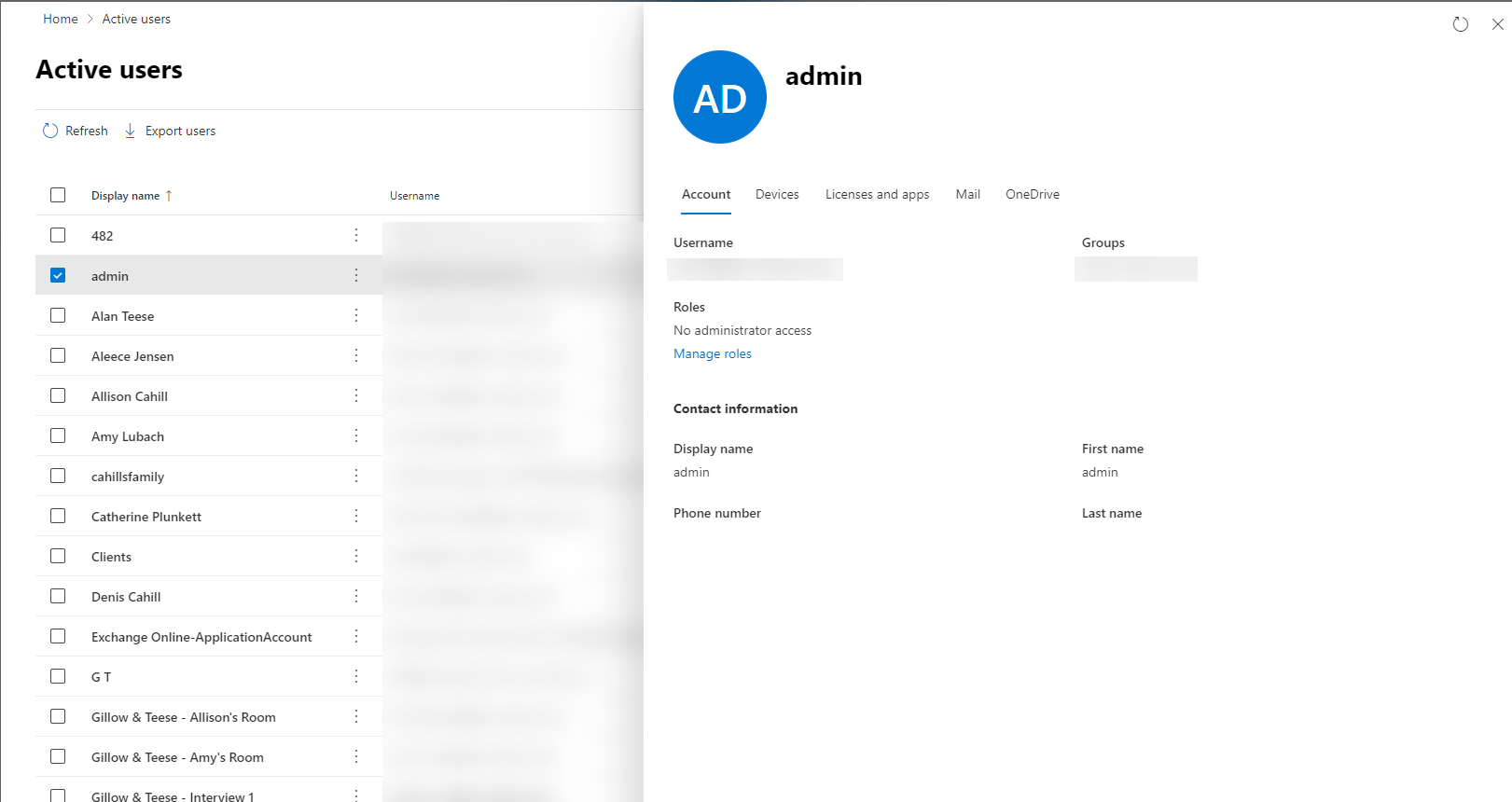
- In your Microsoft 365 Admin Center account, go to: https://portal.office.com/Adminportal/Home#/users
- If you are unable to access the URL, https://portal.office.com/Adminportal, then you are not an admin and do not have Global Administrator privileges.
- Select your user
- Under Roles, confirm that "Global administrator" is one of your assigned roles.
- If you see "No administrator access" you do not have Global Administrator privileges.
Option 2: Check Your Microsoft for Nonprofit Account
Sign In to https://nonprofit.microsoft.com. If you are able to sign in, you should be able to identify if you are the Global Admin based on the message which appears there.
NOTE: Microsoft periodically changes their platform user interfaces, so your experience may be slightly different.
User is a Global Administrator
This is what you will see if you are a Global Administrator
'Status: Approved' can only be seen by Global Administrators.
User is NOT a Global Administrator
This is what you will see if you are not a Global Administrator:
In the example above you can see that the user experience is completely different from what the Global Administrator sees. You are, however, still able to see if your organization is eligible for Microsoft for Nonprofits offers.
Option 3: Check for Emails from Microsoft for Nonprofits (microsoft-noreply@microsoft.com)
The user who registered your organization’s Microsoft for Nonprofits account is automatically assigned the Global Administrator privileges. Check the inbox and spam folders of the email aliases you believe the user may used when registering on Microsoft for Nonprofits email from microsoft-noreply@microsoft.com.
NOTE: User privileges can be re-assigned so there is no guarantee that the user who registered is still the Global Administrator.
Microsoft for Nonprofits sends several email notifications to the Global Administrator after the organization is registered and validated by Goodstack. These emails from microsoft-noreply@microsoft.com usually contain details about the Microsoft account, including the Microsoft domain and the admin login.
Global Administrator Support
Contact Microsoft Support to initiate an “Administrator Takeover” process. You will be required to confirm identity and ownership to regain access. Include in the domain and tenant ID details within the Microsoft Support Ticket. Learn how to find your tenant domain in Microsoft 365 Admin Center.
TechSoup is unable to confirm which user is the Global Administrator or assign the privileges to users within our Microsoft Partner Center. If the Microsoft Support representative tells you to contact your reseller or TechSoup, please explain that you have confirmed with your reseller Microsoft needs to provide admin privileges support.
Review Microsoft’s information about admin roles in the Microsoft 365 Admin Center and assigning admin roles in the Microsoft 365 Admin Center.
Comments
0 comments
Article is closed for comments.